Quake Terminal
Admin-only drop-down command overlay for running slash commands, pw helpers, and kubectl against any cluster
What it is
The Quake Terminal is an admin-only overlay that drops down from the top of the UI when you press the backtick key. It lets you run commands directly against any cluster without leaving the page you are on.
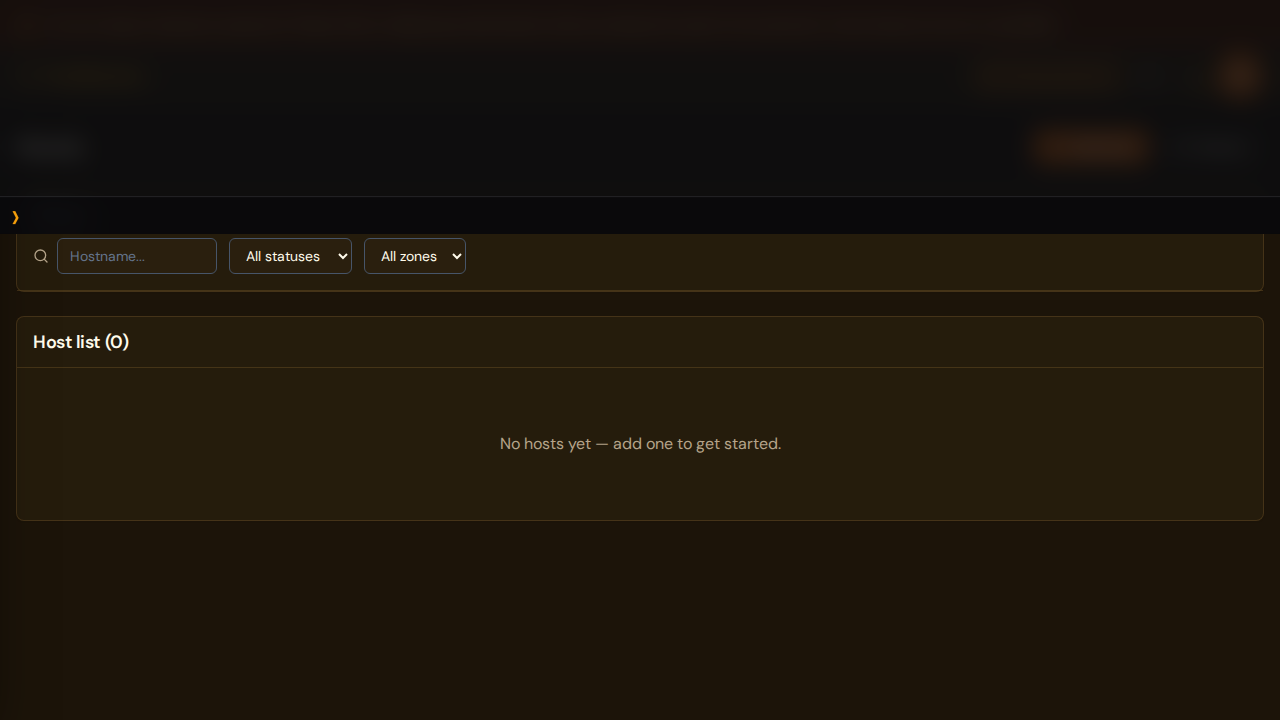
Three categories of commands are available:
- Slash commands — built-in terminal operations (
/help,/clear,/system,/use) pwhelpers — PodWarden convenience commands (pw clusters,pw apps,pw doctor)kubectl— arbitrary kubectl commands routed to the cluster in the current URL or pinned with/use
Output streams over SSE. System events from the backend Kubernetes client appear interleaved as dimmed lines between command output blocks.
How to enable
The terminal is off by default. To enable it:
- Go to Settings → System and scroll to the Quake Terminal toggle.
- Switch it on.
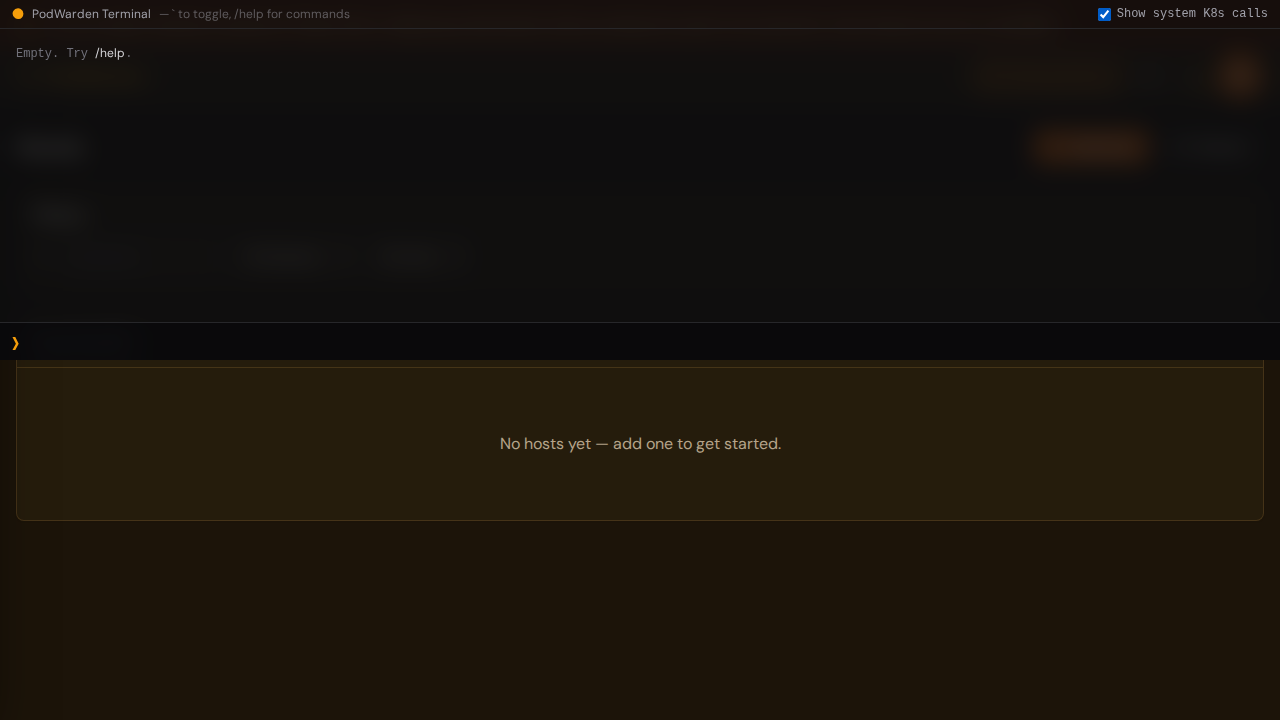
The terminal.enabled system-config flag must be true AND the requesting user must have the admin role. Both conditions are enforced independently on the backend and the frontend. Enabling the flag as a non-admin has no effect. The change takes effect immediately — no page reload required.
How to open and close
| Action | Result |
|---|---|
Press ` (backtick) from any page | Opens the terminal |
| Press Esc | Closes the terminal |
Press ` again with an empty input | Closes the terminal |
The backtick trigger is suppressed when focus is inside a text input, textarea, or CodeMirror editor, so it does not interfere with editing forms or YAML fields elsewhere in the UI.
Commands
Slash commands
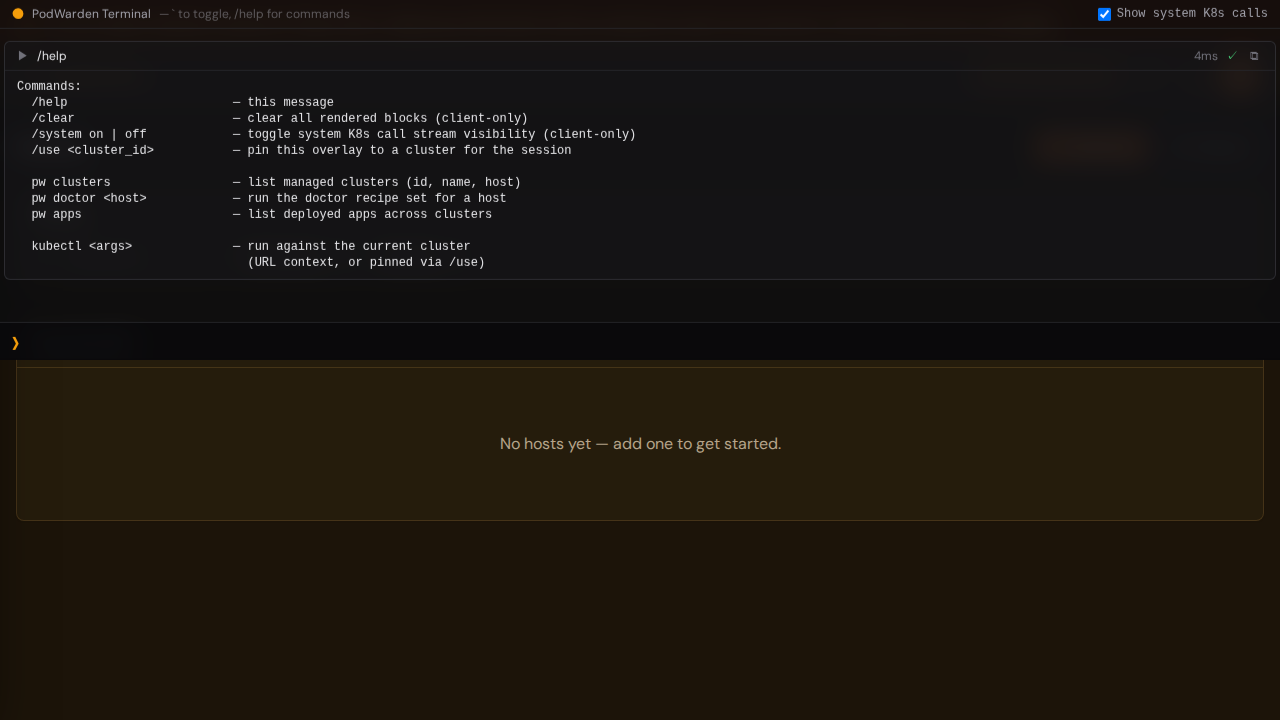
| Command | What it does |
|---|---|
/help | Lists all available commands |
/clear | Clears the output area |
/system on | Enables display of dimmed system-event lines in the output |
/system off | Hides system-event lines |
/use <cluster_id> | Pins a cluster context for subsequent kubectl commands |
pw helpers
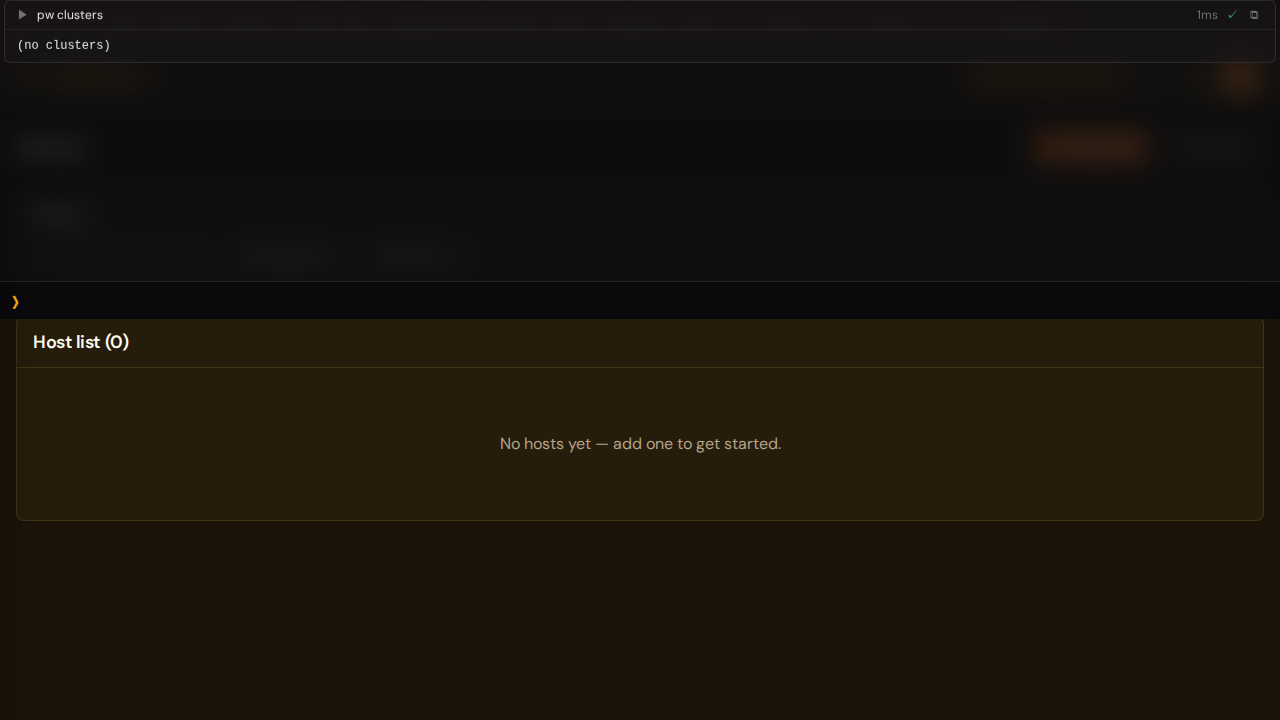
| Command | What it does |
|---|---|
pw clusters | Lists all registered clusters with their IDs and status |
pw apps | Lists applications deployed across all clusters |
pw doctor <host> | Runs the Doctor health check against the specified host |
kubectl
Any kubectl command is accepted. The cluster context is resolved in this order:
- The cluster UUID in the current page URL (
/clusters/<uuid>/...) - The cluster pinned with the last
/use <cluster_id>command in this session
If neither applies, kubectl commands return no cluster context — navigate to a cluster page or run /use <id>.
Examples:
kubectl get pods -n my-namespace
kubectl describe node worker-01
kubectl rollout restart deployment/my-app -n production
Output area
Each command produces a block containing:
- A status badge (success or error)
- The full command output
- A copy output button
Dimmed lines between blocks are system events emitted by the backend Kubernetes API client during the command execution. These are visible by default; toggle them with /system off.
Security
- Admin-only, dual enforcement — the
terminal.enabledflag and theadminrole are checked independently on both the backend and the frontend. A non-admin user who manually sets the flag via the API still receives a 403 on every command request. - No shell execution — the terminal does not provide a shell. Slash commands are matched against a fixed dispatch table.
kubectlarguments are split as tokens, not shell-evaluated; shell operators (|,>,;,&&) are not interpreted. - Input cap — commands longer than 4096 characters are rejected before they reach the backend.
- Cluster scoping — kubectl commands are routed to the cluster in the current URL or the pinned cluster; there is no mechanism to target an arbitrary host outside of the cluster registry.
What is not yet available
The following capabilities are deferred to future releases:
- Per-command RBAC (currently all-or-nothing at the admin level)
- Audit-DB persistence for terminal commands. A planned audit subsystem will eventually capture every operator command, joining the existing
doctor_executionslog and MCP audit trail into one searchable event stream. - Rate limiting on kubectl throughput
- MCP integration (exposing terminal commands as MCP tools)
See also
- System Messages — health check alerts that
pw doctorcan address - Doctor — guided drift remediation via the UI
- Settings: System — where the Quake Terminal toggle lives