Provisioning
Server provisioning jobs with status tracking and real-time logs

What you see
URL: /provisioning
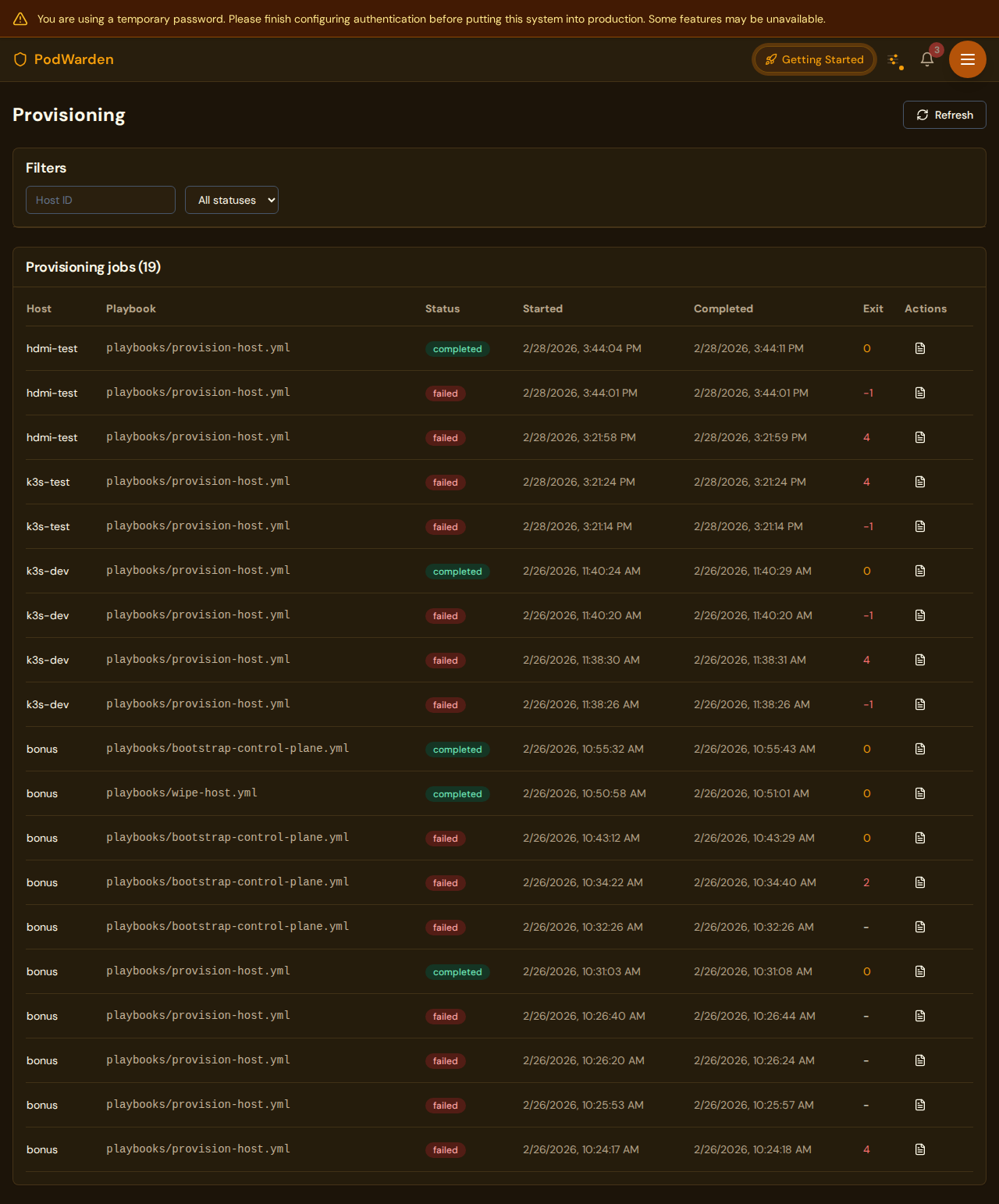
The provisioning page lists all server provisioning jobs. Each job represents an Ansible playbook run that installs K3s, configures networking, and sets up a host to join a cluster. Jobs are created when you click Provision on a host.
Fields / columns
| Column | Description |
|---|---|
| Host | The target host being provisioned |
| Job type | The type of provisioning operation (e.g. install-k3s, join-cluster, wipe) |
| Status | Current job state (see status badges below) |
| Started | Timestamp when the job began |
| Duration | Elapsed time since the job started, or total duration if complete |
Available actions
| Action | Where | What it does |
|---|---|---|
| Cancel | Job row | Stops a running provisioning job. The host may be left in a partially configured state |
| View logs | Job row | Opens the real-time log viewer showing Ansible playbook output line by line |
Status badges
| Badge | Meaning |
|---|---|
| queued | Job is waiting to start |
| running | Ansible playbook is currently executing |
| completed | Provisioning finished successfully |
| failed | Provisioning encountered an error (check logs for details) |
| cancelled | Job was manually cancelled before completion |
What provisioning does
When you provision a host, PodWarden runs an Ansible playbook that:
- Gathers hardware facts -- CPU, RAM, disk, GPU, network interfaces
- Installs base packages -- system dependencies and Docker
- Installs GPU drivers -- NVIDIA drivers and container toolkit (if GPU detected)
- Configures networking -- selects the right connection path and flannel interface
- Installs K3s agent -- joins the host to the target cluster
- Sets up NAT proxy -- if needed for mesh nodes connecting to LAN-based control planes
- Configures GPU runtime -- NVIDIA containerd runtime for K3s (if GPU detected)
Provisioning form fields
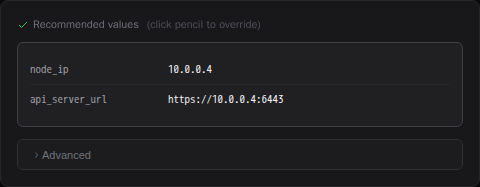
When you open the provision modal, PodWarden pre-fills recommended values based on the host's detected network configuration. Click the pencil icon next to Recommended values to override any field.
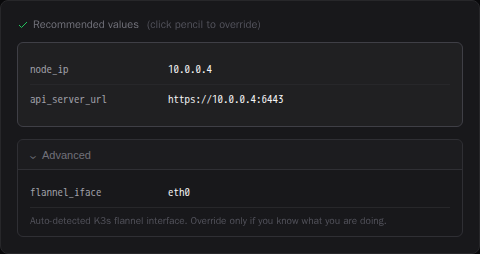
The Advanced section exposes lower-level parameters that PodWarden normally sets automatically:
| Field | Description |
|---|---|
| flannel_iface | The network interface for flannel VXLAN pod-to-pod traffic. Auto-detected based on zone membership and connection path |
Networking decisions
PodWarden automatically determines how the new node connects to the cluster:
- LAN nodes connect via the control plane LAN IP
- Mesh-only nodes (Tailscale only, no LAN) connect via the control plane Tailscale IP
- Dual-network nodes (LAN + mesh) prefer the LAN path
The flannel overlay interface is selected to match the connection path -- tailscale0 for mesh connections, the LAN interface (e.g. eth0) for LAN connections.
For mesh nodes joining a cluster whose control plane advertises a LAN address, PodWarden sets up a NAT proxy so that kubectl logs and kubectl exec work correctly. See the Networking guide for details.
Log messages
Key log messages during provisioning:
| Log message | Meaning |
|---|---|
| Pre-warming Tailscale tunnel | Establishing mesh connection before joining |
| SSH pre-flight check failed | Host is unreachable via SSH — job fails immediately instead of waiting for Ansible timeout |
| Flannel interface: tailscale0 | Pod overlay uses the mesh tunnel |
| Flannel interface: eth0 | Pod overlay uses the LAN interface |
| NAT proxy setup | Redirecting agent tunnel through mesh (mixed network) |
| K3s agent is active | Node successfully joined the cluster |
Wipe
Wiping a host reverses provisioning -- it uninstalls K3s, removes the NAT proxy service if present, and resets the host to its discovered state. The host remains in PodWarden inventory but is no longer part of any cluster.
Log viewer
Clicking View logs opens a panel that streams Ansible output in real time. Logs include:
- Task names and statuses (ok, changed, failed, skipped)
- Command output from the remote host
- Error messages and stack traces on failure
- Play recap summary at the end
Logs are retained after the job completes for later review.
Provisioning timeouts
Ansible provisioning jobs have configurable timeouts to handle slow or remote hosts. Two environment variables control how long PodWarden waits before declaring a provisioning job timed out:
| Variable | Default | Applies to |
|---|---|---|
ANSIBLE_PROVISION_TIMEOUT | 600 (10 min) | Standard hosts (agents) |
ANSIBLE_PROVISION_TIMEOUT_CP | 1200 (20 min) | Control plane bootstrap |
The defaults are generous enough for most local and Tailscale-connected hosts. You may need to increase them when:
- The host is on a slow WAN link or a high-latency remote network
- Package downloads are slow (large GPU driver installs on the first run)
- The control plane cluster bootstrap takes longer due to image pulls
When a job exceeds the timeout, the error message includes the last 50 lines of Ansible output so you can see exactly where the playbook stalled — rather than just a generic timeout message.
To tune the timeouts, set the env vars in the PodWarden API container (e.g. in your docker-compose.override.yml or K3s deployment environment):
ANSIBLE_PROVISION_TIMEOUT=900       # 15 minutes for regular hosts
ANSIBLE_PROVISION_TIMEOUT_CP=1800   # 30 minutes for control plane
Troubleshooting
SSH pre-flight check
Before running Ansible, PodWarden tests SSH connectivity to the target host with a 10-second timeout. If the host is unreachable, the job fails immediately with a clear "Host unreachable via SSH" message instead of waiting for Ansible's longer timeout.
This check runs before all provisioning operations: provision, wipe, and control plane bootstrap. If you see this error, verify:
- The host is powered on and connected to the network
- Tailscale is running on the host (for mesh connections)
- The SSH key is authorized in
root@<host>authorized_keys
Provisioning fails with connection refused
The target host may not be reachable. For mesh nodes, the Tailscale tunnel may not be established. PodWarden attempts to pre-warm the tunnel, but if Tailscale is down on the host, provisioning will fail. Verify the host is online and Tailscale is running.
Node joins but kubectl logs returns 502
This means the K3s agent tunnel cannot reach the control plane advertised address. If the node is mesh-only and the control plane advertises a LAN IP, the NAT proxy should handle this automatically. If it was not set up (e.g. provisioned with an older version), wipe and re-provision the host.
K3s agent not starting
Check provisioning logs for errors during the K3s install step. Common causes include failed token fetch, TCP connectivity test failure, or conflicting state from a previous installation. Try wiping first, then re-provisioning.
Pods on mesh nodes can't resolve DNS
This means the flannel VXLAN overlay between the mesh node and LAN nodes isn't working. Pod-to-pod traffic (including DNS to CoreDNS) requires working VXLAN tunnels. If the node was provisioned before the VXLAN fix was available, wipe and re-provision the host. Check provisioning logs for "VXLAN mesh fix" messages. See the Networking guide for details.
Force reinstall
If a host has a partial K3s installation from a failed attempt, PodWarden can force a reinstall. It handles missing uninstall scripts gracefully, falling back to manual cleanup before installing fresh.
Related docs
- Hosts -- Servers that provisioning jobs target
- Clusters -- Clusters that hosts join after provisioning
- Networking -- Network types and the NAT proxy for mixed networks
- Dashboard -- Provisioning status overview
- Architecture -- How PodWarden uses Ansible for provisioning